Table of Contents
Why Google Drive Keeps Filling Up: The Hidden Cost of Duplicate Files
Your enterprise in 2026 has recently upgraded to the higher Google Workspace plan, and the storage alert keeps returning. Employees state they haven’t uploaded any new files, and the IT team finds no particular cause for it. Gmail space used is normal, and Photos haven’t been enabled. So, the question arises: where did all the Drive storage go? Generally, Google Drive keeps filling up is one of the most common challenges faced by every Google Drive user, whether in a 50- or 5000-employee organization.
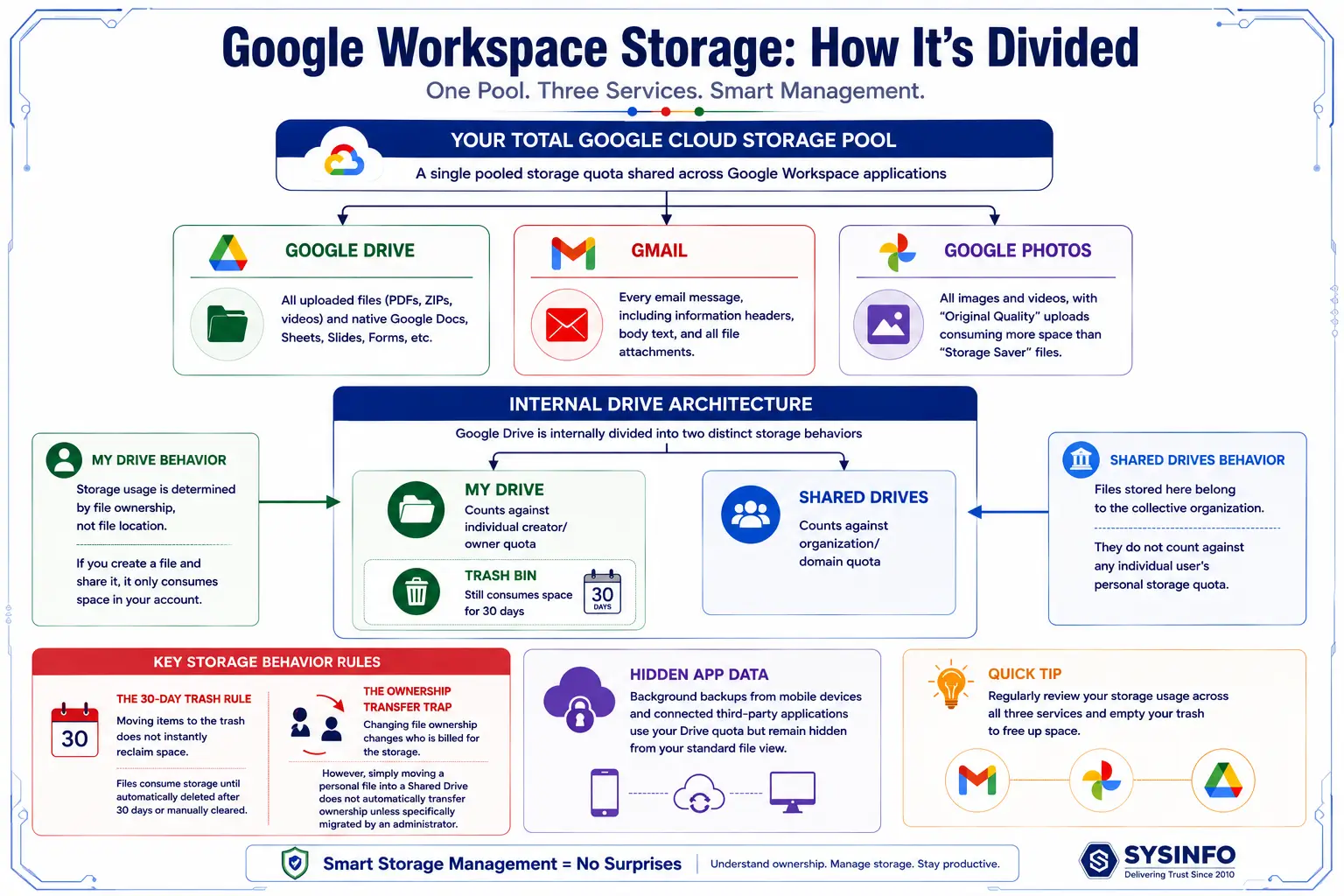
The quota shared across Drive, Photos, and Gmail often consumes space behind the scenes for a number of reasons. This involves hidden data, forgotten backups, inflated storage, uncleared trash, complicated management, and increased operational costs. Among these, one non-negligible factor is duplicate files.
Duplicates are identical copies of documents, reports, contracts, spreadsheets, videos, etc. that are uploaded, copied, migrated, or shared across multiple users and departments. They create all sorts of issues, including legal and compliance workloads. With increased scope for hybrid working, cross-functional collaboration, and cloud-first environments, duplicates are built faster than expected. Here, explore how they are built, what operational costs they affect, and how you can regain control over your data with precision.
Understanding Google Drive Architecture
What Makes Duplicate Detection a Complex Task?
Google Drive does not have any built-in capabilities that allow automatic detection and deletion of duplicate files, unlike duplicate contacts and photos available in certain consumer software applications. Administrators can monitor storage usage and search for content; however, redundant file detection usually demands manual checks or special, reliable third-party software.
Usually, these issues arise when Google Drive keeps filling up:
-
Different files can have a variety of names but similar content on multiple shared drives.
-
Two files can share the same name and yet belong to different owners.
-
Even when the content is similar, permissions might not remain the same.
-
Migration activities can create duplicate datasets for the sake of validation/rollback.
This is why duplicate files may not be noticed for a long time.
The businesses performing migrations, including SysInfoTools, pay close attention to migration preparation and planning because transferring documents means not just copying files during migration but performing validation of source data, permissions, and supported content. Additionally, it is important to remember that SysInfo is a migration platform rather than a synchronization tool, which ensures post-migration governance and feasible cleanup.
Identical Drive Data, Different Risks: Skip Deleting Wrong Copy
Proper file cleanup first involves verifying both duplicate files and similar files. Duplicate files are files with identical content (same file hash) and are usually cleared after confirming their existence. Similar files, on the other hand, like different versions of documents or photographs taken with gaps of seconds, can have significant alterations and must therefore be inspected before deletion.
Furthermore, Google Drive generates a unique link for file share. This means that a shared duplicate file can cause access issues, even with the existence of its counterpart.
Apart from incurring operational costs, duplication has a measurable financial impact. With an increase in the prices for Google Workspace tiers, the presence of duplicate files complicates storage challenges for the organization, resulting in unpaid storage costs.
Optimize Google Drive Storage When Gmail & Photos Overlap
Duplicate storage is a common issue in Google Workspace because of the combined storage capacity between Google Drive, Google Photos, and Gmail. Storage is counted twice when identical files are stored in separate locations, so duplicates in Google Photos during the send occupy storage.
For example, when photos are uploaded to Google Drive after they have already been backed up in Google Photos, each file will be counted toward the storage quota. Similarly, even if large files are saved in Gmail, their duplication in Drive can lead to extra storage usage. This means that cleaning up in Drive does not tackle all storage problems because only Drive is analyzed.
Prepare Google Drive Cleanup For Migration & Audits
Duplicate files are a big problem when dealing with any of the following:
-
Tenant Consolidations
-
Domain Mergers
-
Migration between Clouds
-
Legal Audits
-
Backup Activities
Each duplicated file increases the time consumption for review, analysis, transfer, and backup. Conducting a proper assessment of the duplicate volume can help in efficient data handling and improve performance.
Manually Resolve Google Drive Keeps Filling Up Issue
In smaller environments, you can use any of the below-mentioned solutions to remove duplicate files from Google Drive; however, as your Drive data volume increases, handling it becomes quite difficult. The common ways are as follows:
Storage Usage Checks
Identify common storage concerns like:
-
Unusually high storage consumption
-
Storage keeps growing across departments
-
Large repositories and filled shared drives
-
Hefty uploads and unmanaged archives
What You Must Do?
Do not wait for storage alerts. Schedule storage review checks either quarterly or monthly, as preferred.
Search & Sort By Name or Size
Locating specific filenames like handbook.pdf, creation.docx, etc. is one of the simplest ways. However, it has limitations because duplicates generally have similar names and extensions like: student_attendance.pdf, student_attendancev1.pdf, student_attendance2026.pdf, and so on. Each one of them may appear unique but is very identical by the content within them.
Moreover, large files such as video recordings, product demos, training sessions, marketing assets, CAD files, and high-resolution images consume a lot of space. If you have multiple files with the same name and size, then obviously they indicate duplication, which must be carefully eliminated. But it may consume too much time identifying each duplicate file and removing them. Thus, here an automated duplicate remover software solution is a more considerable solution.
Shared Drives Verification
When reviewing the data within the shared drives, the most important things to look for are:
-
If multiple teams contain identical project templates?
-
Whether finished projects are archived in a single or multiple locations?
-
Are departments referencing existing sources or copying them separately?
This is usually where you can identify the duplicates in your Google Shared Drive. Again, periodic checks can help eliminate them carefully.
Why Built-In Tools Aren’t A Reliable Solution?
While Google Workspace permits storage visibility for administrators, duplicate files cannot be tracked down through it. The storage report in the Google Admin Console can only help in determining the names of users and the Shared Drives, but this report cannot determine how many of the users have duplicate files in their storage.
“Google Drive does not have a built-in command to help users find duplicate files on a corporate-wide basis.”
Even though manual methods can be effective on a small scale, they become impractical in an enterprise setup. An enterprise may have over 1,500 employees, 60 shared drives, 8 TB of storage, and millions of files. Even if the administrator checks every file in 10 seconds, it will take years to inspect everything.
In addition, manual searching becomes much more complicated because of the following factors:
-
They have different names.
-
Exist across several folders.
-
Have many different file owners.
-
Have the same content but different metadata.
A significant number of duplicates may be found in Shared Drives, where it is difficult to identify who owns the files. Users with high storage will not be able to clear up the storage themselves in the enterprise environment. Which brings us to the expert, trusted duplicate remover software solution.
Cases Where Automated Duplicate Detection Matters
Instead of occasional cleanups, advanced duplicate detection and removal can help admins in consistent drive storage management. The main situations where it is most needed are:
-
Fast increase in storage use over the years.
-
Regular alerts of "storage almost full" status.
-
Major movement or organizations or teams merging work.
-
Several units of workers working with the same drives.
-
Problems with recognizing the newest copies of documents.
Fix Google Drive Keeps Filling Up The Smart Way
By now you are aware of the fact that duplicacy in Google Drive storage isn’t just an inconvenience anymore; it's a lot more. Also, numerous causes of duplicate sprawl aren't easy to identify, such as duplication due to syncing, ownership changes, and personal copies.
The manual cleanup, though, works for very small environments; large organizations and enterprises need a dedicated and scalable approach. Among others, the only existing way is through a software solution that can scan all files on someone's Drive account or shared Drive, determine the actual duplicates according to their content instead of just their names. Even allow administrators or users to process them all at once, which perfectly fits the broader compliance-oriented environment.
SysInfo Google Drive Duplicate Finder is one such remarkable solution (available for both Windows & macOS), as stated by individuals and professionals worldwide. “Built with advanced algorithms, it not only eliminates redundant data but strategically finds and inspects it, preserves crucial items, files, and folders, and reclaims space without disrupting business operations or collaboration. Instead of solely relying on filenames, it intends to streamline the review and reduce manual effort required for the identification and removal of duplicates. ”
Here’s how it particularly divides its searches:
My Drive
Data present within the existing files and folders in my Google Drive account with full ownership. It is kept private until explicitly shared at the individual file/folder level. Preserve all its contents, whether documents, reports, images, videos, archives, or other, with 100% accuracy.
Shared Drives
Data owned collectively by an organization where each member within it can access the content with assigned permissions. Unlike the files within My Drive, which can be deleted or lost, these stay intact for everyone. You may need admin or Manager permission to move them.
What This Enterprise Software Actually Does?
SysInfo Google Drive Duplicate Cleaner scans your entire Drive and identifies duplicates with the comparison of actual content instead of simply overlooking the file name. It locates duplicates that Drive’s own interface can’t surface, such as:
-
Files with identical names but different paths
-
Re-uploaded file versions due to sync conflicts
-
File copies generated during migration or ownership transfer
-
Empty, bulky, or old archives within the Drive
-
Duplicates within the same folder or hidden
-
Files present in Trash or have Not Owned by Me
This file categorization helps detect them easily and clean up data with full control and automation. Besides this, granular filtering control and secure read-only OAuth authentication access to the data ensure full security of the confidential and sensitive drive data.
Practical Workflow of Google Drive Duplicate Remover
Follow this simplified guide for authentic duplicate elimination in the minimal possible time for enterprise volumes:
Rest assured, it will work for you. Try out the Demo and scan files of upto 100 GB for free. However, if you require a more detailed working process to convert files of 500GB+ or TBs, you can refer to the Step-by-Step Guide for Google Drive Duplicate Finder. It has pictorial representations and clear explanations for the entire process for ease of use.
Google Drive Keeps Filling Up Resolved With SysInfoTools
Practical software solutions like this Google Drive Duplicate Eliminator help IT admins and teams to:
-
Cut down on the time spent on manual reviews of storage.
-
Detect similar files in extensive datasets.
-
Enhance the efficiency of storage use.
-
Make migration planning easier and cut backup volume.
-
Enhance governance over document handling.
Apart from this, it even delivers many other enterprise operational benefits, such as:
| Advantages | Value Added |
|---|---|
| Optimal Space Use & Instant Discovery | Unnecessary storage usage is reduced, and files can easily be located, saving time |
| Feasible Data Transfer | Data can quickly be analyzed and migrated with no major risks |
| Compact Data Footprint | Fewer datasets for backup, which helps in fast recovery upon loss |
| Better Collaboration & Governance | Teams do not have to work with multiple similar files, and authoritative documents become accessible with no hassle |
| Less Admin Efforts | Manual storage cleanup on a timely basis does not consume time and much effort in the future |
Note: If you are expanding your Google Workspace usage, ensure removing duplicates strategically first with the particular software to achieve the above-mentioned benefits at a later stage. For any other concerns, reach out to our tech support 24*7.
Best Practices To Remember If Your Google Drive Keeps Filling Up
Eliminating similar files only brings you halfway to Google Drive storage optimization. For full cleanup, ensuring that they do not return with appropriate prevention techniques is the key. To achieve this, make note of these established benchmarks:
-
Collaboration: Yes, Copy: No
Make full use of Google Workspace share and collaboration features wherever possible. Share documents, use comments and suggestions, work in a single document and not email attachments or download copies.
-
Harmonize Uniform Naming
Apply consistent naming structure to reduce confusion and locate files properly.
-
Audit Drives Shared
Ensure each shared drive has ownership assigned and review its content (outdated/duplicated) from time to time.
-
Manage Projects Data
Keep only the completed project data in a collaboration folder and move inactive ones to a designated archive location. Prepare plans for how to deal with expired contracts, temporary working documents, obsolete materials, or outdated templates stored within your drive.
-
Training & Education
Discuss Drive data version history, document sharing, and storage best practices with other employees and team members.
-
Periodic Assessment Checks
Quarterly or monthly, review your duplicate data before they escalate in bigger concerns.
Ending Remarks
It is essential to manage space when Google Drive keeps filling up even more than erasing any duplicate files. Increasing user knowledge, establishing Shared Drives, implementing storage limitations, using sync-client restraints, conducting offboarding investigations, cleaning out the Trash periodically, and performing storage audits work together in preventing the appearance of duplicate files in storage.
In cases where organizations see fast growth of their Google Drive storage, using SysInfo Google Drive Duplicate Finder can greatly facilitate duplicate document detection and removal for continued governance of the storage space in 2026.
FAQs
I have deleted many files within Google Drive. Why does it still keep filling up?
Ans. When you delete a file (duplicate files, large media files, email attachments, and shared content), it is moved to the Trash and consumes storage space until you remove it permanently or Google eliminates it after a period of 30 days.
Can Google Drive detect duplicates automatically?
Ans. No, there is no automatic duplicate detection feature available in Google Drive. It requires manual review or a specialized duplicate removal software like SysInfo Google Drive Duplicate Cleaner.
How does Google Drive affect migrations for Google Workspace?
Ans. Duplicates in Google Drive increase the amount of data that you need to analyze, review, backup, transfer, or validate during migration from Google Workspace to another domain or platform. Thus, more effort is required and more time is wasted. Beforehand storage cleanup can help simplify the planning, saving time, reducing unnecessary data transfers, and effort input.
Is it safe to remove duplicates from Google Drive?
Ans. Yes, if you are using a dedicated solution like Google Drive Duplicate Finder and Cleaner by SysInfo, then duplicate elimination is completely safe. It ensures you carefully review the data before the deletion and retain only the correct version of your business-critical files, following backup and retention policies.
Do Shared Drives contain duplicate files?
Ans. Yes, the Shared With Me folder of your Drive can also have duplicates if the data within it is from different departments, projects, or regional teams. If not treated or identified in a timely manner, it may continue to accumulate, taking up your storage and resulting in low performance and degraded operational continuity.
How often must Google Drive storage be audited?
Ans. Most organizations should audit their Google Drive on a quarterly or monthly basis. However, if it's a very large enterprise, then frequent assessments will do more good.
How to quickly reclaim the storage of my Google Drive?
Ans.The fastest way possible for storage reclamation is to use the professional SysInfo Google Drive Duplicate Finder Software. It automatically scans all folders, files, and subfolders in My Drive and Shared Drive. Gives up a storage summary and several filter options to remove duplicates temporarily or permanently as desired with precision.
Was this article helpful?