-
Written By
Simran Bhatia -
Approved By
Sonika Rawat -
Updated on
August 25th, 2026 -
Read Time
9 minutes
Export Office 365 Mailbox to PST: Complete Guide to Secure Cloud Backup
User Query: I have a need to export the content of a few mailboxes to .PST files to store in a file store archive. Can someone recommend the simplest way to do that? In my own digging, I see using Microsoft Purview eDiscovery has a path, but is there a way to go to a mailbox in the Exchange Admin Center in Microsoft 365 and export it from there? -Matthew Rosier
Introduction: Almost all companies use cloud tools to work together every day. As data grows, keeping full control over your digital assets is key for IT teams. Many businesses need to frequently export Office 365 mailbox to PST for strict rules and backup plans. For a small number of mailboxes, the basic Microsoft Purview eDiscovery method is useful. But for large mailboxes, it’s highly recommended to use the SysInfo Office 365 Export to PST Tool. It gives you a 100% secure process without any data loss.
Understanding Microsoft 365 and PST Files
Microsoft Office 365 (now known as Microsoft 365) is an online service that allows the user to access Outlook, Word, Excel and other Microsoft applications. The user’s emails will not be stored in his/her personal computer; rather, they will be stored on Microsoft’s server. That’s the whole idea behind it: your mailbox stays in the cloud, not stuck on one PC.
PST stands for Personal Storage Table. It’s a file type that Outlook uses to save your emails, contacts, calendar, and other mailbox items on your own computer. Think of it as a portable copy of your mailbox — once it’s in PST form, you can open it in Outlook anytime, even without the internet, even without your Office 365 account being active.
Reasons to Export Microsoft 365 Mailbox to PST
- An employee is leaving, and legal or HR wants a local copy of their mailbox before the license is removed.
- Some industries need email records kept outside the live mailbox, in a format that can be opened without an active Microsoft 365 subscription.
- Admins who don’t fully trust relying on the cloud alone for retention.
- Moving data between tenants, to an on-premises Exchange setup, or into another mail client that reads PST files.
What Are The Prerequisites For Office 365 Data Export?
- First thing, just check if your Microsoft 365 account actually has admin access.
- Sometimes the roles are missing, and then the export option doesn’t show at all.
- Also, don’t ignore your internet speed; big mailboxes can take time.
- Keep some free space ready before you start. PST files can get large.
- If the data is sensitive, store it in a secure or encrypted location.
Manual Methods to Export Office 365 Mailbox to PST
There are various techniques to perform the Office 365 data migration manually. This guide explains two manual methods with a stepwise process and the obstacles that come along.
Method 01: Backup Office 365 Mailbox to PST
Various ways to export a Microsoft 365 mailbox to a PST file can be used. Nevertheless, there is one manual approach that utilizes the Security & Compliance Center, together with administrator permissions and roles.
- First, sign in to the Microsoft 365 Security & Compliance Center with an admin account.
- Next, open Permissions and assign the eDiscovery Administrator and Mailbox Import Export roles.
- You will have to go to the Content Search and start a new search.
- Then, select the required shared mailbox from the Exchange mailboxes section.
- Now, apply the preferred filters and save the search request.
- Once done, wait for the search to finish and open the completed search result.
- Next, press Export Results to begin exporting the data of the mailbox.
- Download the export package, key, and then save your Office 365 shared mailbox as PST file.
Method 02: Export Office 365 to PST With PowerShell
- At first, connect to Compliance Center
|
Connect-IPPSSession -UserPrincipalName <UserPrincipalName> |
- Then, create Compliance Search
|
New-ComplianceSearch -Name “MailboxExport” -ExchangeLocation <MailboxName> |
- Now, start the search
|
Start-ComplianceSearch -Identity “MailboxExport” |
- Check Search Status (Important)
|
Get-ComplianceSearch -Identity “MailboxExport” |
- Export Results
|
New-ComplianceSearchAction -SearchName “MailboxExport” -Export |
- Finally, Download PST: Go to Microsoft Purview Portal >> Open export job >> Generate SAS URL >> Download PST file.
Limitations of Manual Office 365 to PST Export Methods
- Manual processes usually need a longer time and effort in case of large mailboxes.
- You will need admin access and proper role permissions to move data.
- Users will need high technical expertise to follow commands and a high risk of data loss.
- Large mailbox exports may experience latency due to indexing and search processing time
- Limited support for advanced filtering and the incremental backup scenario.
- One wrong PowerShell command can mess up the whole process.
- Not suitable for bulk mailbox migration or enterprise-scale backup operations.
Professional Tool to Export Office 365 Mailbox to PST
SysInfo Office 365 to PST Export Tool should be used for exchanging online, on-premises, and hybrid data exports. The tool helps the user to export a large Office 365 mailbox, shared mailbox, online archive, or public folder in one go. As the tool operates on localhost, there will be no synchronization errors. Offer several advanced features, like Preview, Date Filter, Remove Duplicates, and more.
With its simple interface, every user can easily use it. No technical complexity is required. This tool is highly compatible with all Windows and Mac OS versions.
Steps for Exporting Office 365 Mailbox to PST
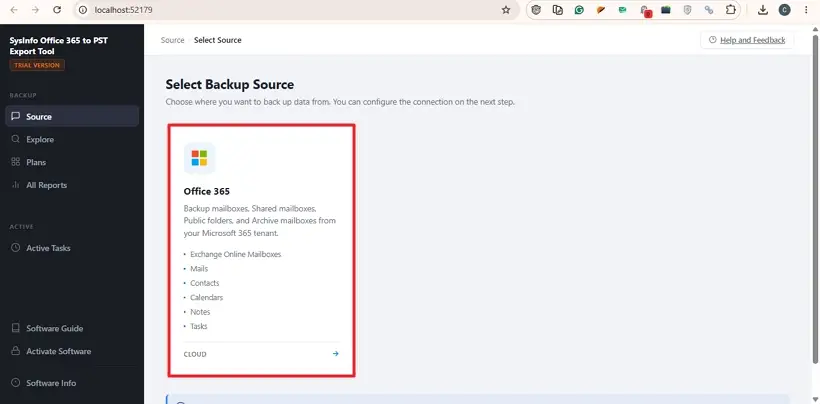
- Download & install the software. Click Open in Browse and choose Office 365.
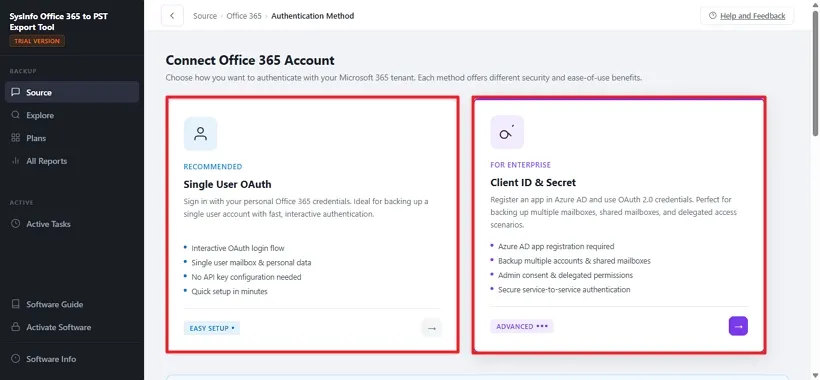
- Sign In using Single User OAuth or Client ID & Secret ID.
- Then, select Backup options (Primary Mailbox, Online Archive, Shared Mailbox, Public Folder). Use User Mapping and click Next.
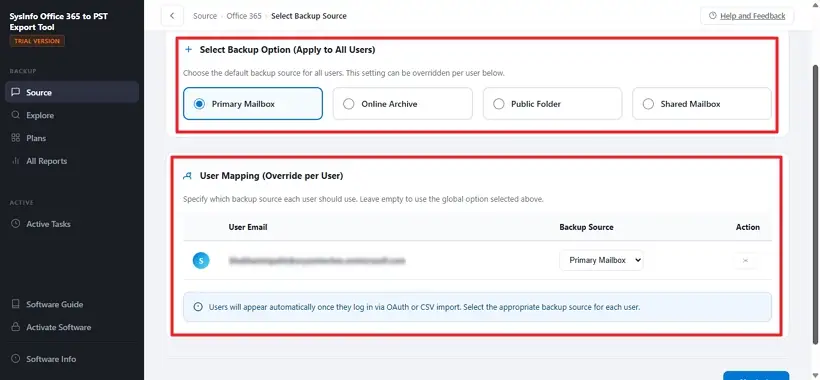
- Now, select the Mailbox folder that you want to export. Click Next.
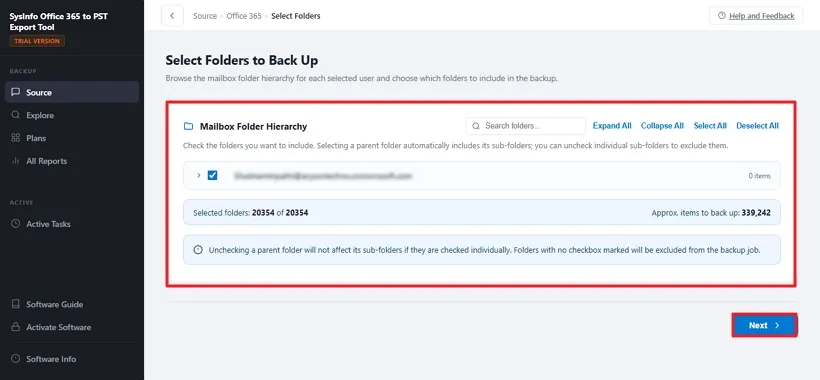
- Choose PST as the Saving Format from the options.
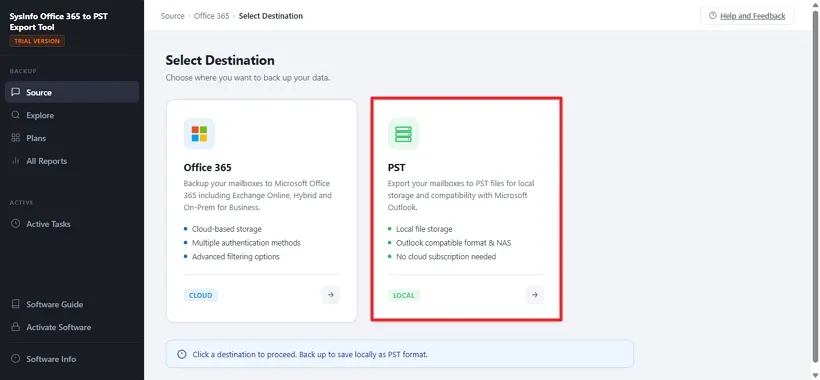
- Lastly, apply advanced features as per your need. Press Start Backup.
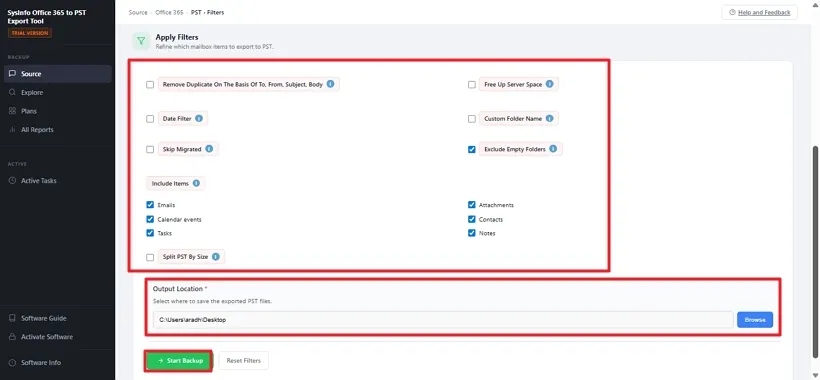
Note: For detailed guide, check the software guide of SysInfo Export Office 365 to Outlook PST Tool.
Key Features of Using Professional Tool
- This utility uses current authentication methods to create a safe connection with Microsoft 365.
- Provides users the choice of selective migration rather than a complete export.
- Preserves folder structure and other email properties during the process.
- Helps to avoid common issues like failed exports or incomplete data.
- Allows exporting to different file formats and Microsoft Office 365 Tenant to Tenant Migration.
A Real-World Example: Office 365 Backup to PST
There was a company that required transferring 50 TB of Office 365 data in 2 weeks. They tried to do it manually but failed. But the SysInfo Office 365 Backup Tool not only helped them to move data but also ensured data safety and a smooth process. They even used it at a later stage to download Office 365 emails to computers.
Final Words
Managing big mailbox migrations needs a move from manual work to strong Office 365 backup solutions. Using manual methods can slow things down and risk losing data. Today’s businesses must focus on being efficient to keep things running smoothly. With reliable SysInfo Office 365 backup software, admins can export Office 365 mailbox to PST easily and risk-free.
Frequently Asked Questions
Q1. What is the process to export Office 365 to PST?
Ans. This can be achieved using different options. If you only want to export your mailbox, then you should go with Outlook, but if you are doing the export as an administrator, then you should opt for Microsoft Purview. However, if you want to export many mailboxes, then you should go with the Office 365 export tool.
Q2. Is it possible to migrate Office 365 mailbox to PST by applying Date Filter?
Ans. Yes, make use of the Date Filter feature of an expert tool for selective email migration from Start Date to End Date. It is useful when you wish to migrate only certain selected emails.
Q3. Is the Office 365 folder structure retained in the PST file?
Ans. Yes, since it is possible to retain the folders in case the exporting technique supports such functionality, the mailbox folders can be backed up as they exist currently. It becomes easy to locate emails once the PST is opened using Outlook.
Q4. Is it possible to remove duplicates while exporting from Office 365 to PST?
Ans. Yes, using the SysInfo Office 365 to PST export tool allows for duplication removal. It will prevent the same email from being saved twice during the export process.
Q5. Is it safe to back up Office 365 mailbox as a PST file?
Ans. As the PST file is an archive of your mailbox, it is advised that you store it in a secure location as the file consists of sensitive and business information.
Q6. Is it possible to conduct data filtering and duplication elimination when backing up Office 365?
Ans. Yes, since the data export software supports these two functionalities, it is indeed possible to perform date filtering as well as duplicate email removal during a single data export process.
Q7. What will be the method for migrating multiple Microsoft 365 mailboxes to PST?
Ans. Manual migration of hundreds of mailboxes may consume much time. They must use an office 365 to PST migration software in bulk which will allow them to move their mailboxes at once.
Q8. What are the permissions required for the Office 365 mailbox to PST migration process?
Ans. The account that executes the migration process needs to have the required permissions for accessing mailbox data. In case of multiple mailboxes or other users’ mailboxes, the administrator may need to configure the necessary Microsoft 365 roles prior to the export process.
Q9. What is the advantage of OAuth authentication with regard to mailbox backup security in Office 365?
Ans. In using OAuth, the app can log into Microsoft 365 without having to know the password of the user’s normal login. It does this by use of access tokens and permission scopes.
Q10. Can I export Microsoft 365 Online Archive data to PST files independent of the main mailbox?
Ans. Yes, Online Archive data can be handled separately depending on the export method and the permissions available. Before starting the export, check that the selected tool or Microsoft 365 method supports the specific archive mailbox you want to save.
About The Author:
Simran Bhatia is a technical content writer engaged in writing clear, concise, and SEO-optimized content. With a background in computer science and a passion for writing, I thrive to deliver complex technical content in simple layman terms.
Related Post