-
Written By
Simran Bhatia -
Approved By
Sonika Rawat -
Updated on
November 25th, 2026 -
Read Time
8 minutes
Find Duplicate Files in SharePoint Online: Identify and Delete Duplicates Easily
Fact-checked and reviewed in accordance with our
Editorial Policy
Duplicate files can be found frequently in SharePoint Online, particularly where there are multiple users uploading, sharing, and managing the documents. The same report may exist in different folders or document libraries. Sometimes, users also upload a file that already exists under a different name. These extra copies make file management difficult. They also use unnecessary storage and create confusion about which document is the latest. That’s why users need to find duplicate files in SharePoint Online. This blog explains the manual methods and a professional SysInfo SharePoint Migration Tool to remove duplicates without any hassle.
Why Do Duplicate Files Appear in SharePoint Online?
Duplicate files can appear for several reasons. Here are some common situations:
- Users upload the same document more than once.
- Various team members keep copies of the same document.
- Individuals download shared documents and store them in other folders.
- Transferring documents from one storage location to another may result in having duplicate copies.
- Individuals change the names of existing documents and save them again.
- Teams have several copies of documents for security reasons.
For instance, there can be a single document with the name of the Employee Policy stored in three different SharePoint libraries, where each of the documents has a different name such as Employee-Policy.docx, Employee-Policy-Final.docx, and HR-Policy-2026.docx.
Different Methods to Find Duplicate Files in SharePoint Online
There are three different methods to find and remove duplicates. Manually, using PowerShell, and with a professional tool. Take a short overview of which method is best for your requirements.
| Manual Method for SharePoint Duplicate File Finder | Small document libraries |
| PowerShell | IT administrators and technical users |
| SysInfo SharePoint Migration Tool | Businesses managing multiple sites or large file collections |
Manual Method to Delete Duplicate Files in SharePoint Online
- Go to your Document Library and select the view as All Documents.
- Now click on the column headings and do sort based on Name. Files that have the same name will be placed adjacent to each other.
- Next, do the sorting by File Size (you can add this column if it is not already available under view options). Files having the same size and modified on the same date are potential duplicates.
- Use the search bar above the document library or use SharePoint search to search for a file name. If the file occurs twice or more times, just compare the paths.
- Then open both files and compare the content. Only delete the redundant file once you are sure that it is the same.
- Now click on Export to Excel and use the option as conditional formatting –> Highlight Cells Rules –> Duplicate Values on the name column.
Limits of the Manual Method for SharePoint Duplicate File Detection
- It would detect only those duplicates that have the same name. If you have renamed your duplicate, it will not detect it.
- Human errors would take place very often since it is very easy to accidentally delete the duplicate.
- It looks at libraries one at a time and cannot detect any duplicates existing across multiple locations easily.
- A long time would be spent to complete the process of scanning the library.
Find Duplicate Files in SharePoint Online Using PowerShell
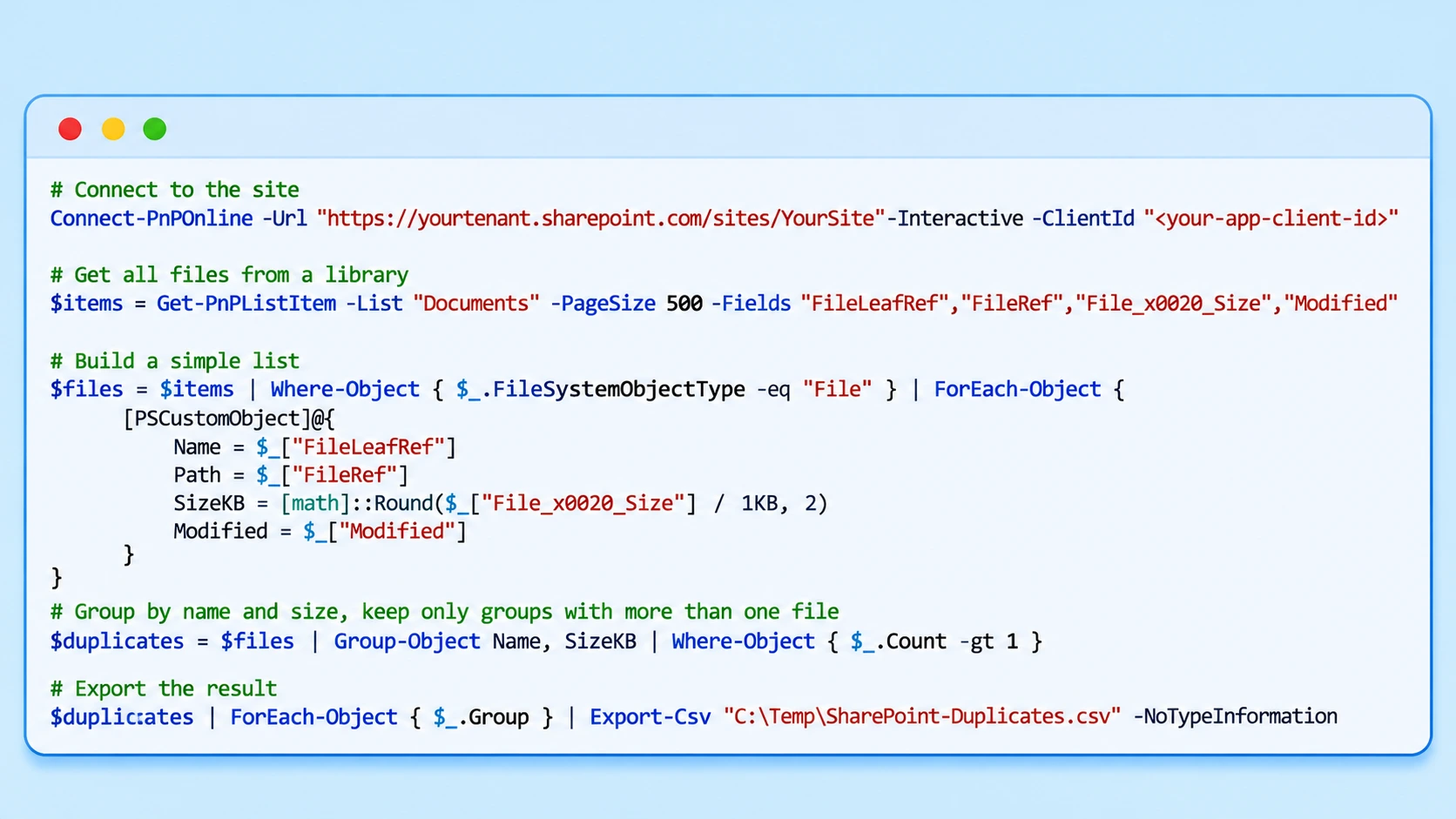
Limitations of the PowerShell Method to Find Duplicate Documents in SharePoint
- Requires scripting knowledge and administrative permissions.
- Matching the name and size of a file does not mean the contents are identical.
- The hash comparison approach involves downloading the files, which takes time in case of massive amounts of data.
- Throttling issues may occur for scripts when used in massive tenants.
- Deleting via scripts is unsafe if the list has not been reviewed carefully.
Professional Method to Find Duplicate Files in SharePoint Online
For the administration of several SharePoint sites or many documents, manual inspection can be tedious. Writing and maintaining PowerShell scripts requires technical skills. There is a SharePoint Deduplication feature available in the SysInfo Microsoft SharePoint Migration Tool. It assists in scanning and detecting duplicates among the selected SharePoint sites. 24/7 Technical Support is available. The tool checks files using multiple criteria, including file content hash, file name, file type, or creation date. It can also identify duplicate content when files have different names.
Simple Steps to Delete Duplicate Items from a SharePoint Online
- Download the Microsoft SharePoint Migration Tool and click the Deduplication Module. Select SharePoint Deduplication.
- Complete the authentication process to access your SharePoint sites and select the sites to find duplicates.
- Check the available options and start the scanning process.
Note: Always review duplicate results before deletion. A file’s location, sharing links, and business use may matter even when its content matches another copy. For detailed steps, check the software guide.
Why Use a Professional Tool to Delete Duplicate Files in SharePoint Online?
- Various detection methods: Compares file content hash, file name, file type, and creation date.
- Various file names: Allows for the recognition of similar files created with other names.
- Selected site scan: The scan is done on the selected SharePoint sites.
- Latest or oldest file: The ability to choose either the latest or oldest copy.
- Flexible deletion: Gives the option to send duplicated files to the Recycle Bin or delete forever.
- Three-step process: Retrieves files, detects duplicates, and deletes unnecessary files.
Final Words
Methods to Find Duplicate Files in SharePoint Online. There are three ways to find duplicate files in SharePoint Online depending on your needs. The manual way is good for small libraries of documents; PowerShell is convenient for IT professionals, while a professional SharePoint migration tool will do better for large environments where duplicates can be found and deleted automatically with less manual work. Always ensure that a file you want to delete doesn’t have important information, and save a correct copy before deleting anything.
Frequently Asked Questions
Q1. How can I find duplicate files in SharePoint Online?
Ans. There are three ways for you to locate duplicate files on SharePoint Online. You can manually check for duplicates in your documents library, use PowerShell to find duplicates based on file name and size or even content hash, or use a dedicated SharePoint duplicate removal tool.
Q2. Can SharePoint detect duplicate files with different names?
Ans. SharePoint Online does not provide a built-in feature to identify all duplicate files with different names. You can compare their content hashes using PowerShell or use a dedicated SharePoint duplicate file finder to detect matching content.
Q3. How do I find duplicate files across multiple SharePoint document libraries?
Ans. You can check each document library manually, create a PowerShell script to collect and compare file information, or use the SysInfo SharePoint Migration Tool. Its Deduplication module scans selected SharePoint sites to identify duplicate files.
Q4. Can I find duplicate files in SharePoint by filename?
Ans. Yes. Open your SharePoint document library and sort files by name. Files with identical names will appear close to each other. However, matching names do not always mean the files have identical content. Compare their details and content before deleting anything.
Q5. How do I delete duplicate files without deleting the original document?
Ans. First, compare the files and identify which copy you want to keep. Check its content, location, and modified date. Then select only the unwanted copy for deletion. You can also move it to the SharePoint Recycle Bin instead of permanently deleting it.
Q6. Can PowerShell identify duplicate files in SharePoint Online?
Ans. Yes. PowerShell can collect file names, sizes, paths, and other properties from SharePoint libraries. You can group files with matching properties or calculate content hashes to find identical files. However, a complete duplicate scan requires additional scripting.
Q7. Is it safe to automatically delete duplicate files in SharePoint?
Ans. Automatic deletion can remove important files if the duplicate results are not reviewed. Always check file content, version history, sharing links, and location before removing copies. Keep a backup or use the Recycle Bin option whenever possible.
Q8. Can I recover duplicate files deleted from SharePoint Online?
Ans. Yes. Deleted files generally move to the SharePoint Recycle Bin. You can restore them if they are still available there and you have the required permissions. Recovery depends on the applicable retention period and deletion policies.
Q9. Can I delete duplicate items from a SharePoint Online document library in bulk?
Ans. Yes. You can use PowerShell scripts or a professional deduplication tool to process multiple duplicate files. The SysInfo SharePoint Migration Tool provides options to identify duplicates and remove selected copies from SharePoint sites.
Q10. How can IT administrators manage duplicate files across an entire SharePoint tenant?
Ans. IT administrators can collect file information from different SharePoint sites, compare matching files, and review duplicate reports. For larger environments, a dedicated deduplication tool can simplify scanning selected sites and removing unnecessary copies.
Q11. Can MSPs scan duplicate files across multiple client SharePoint environments?
Ans. MSPs can use PowerShell or dedicated tools to identify duplicate files in client SharePoint environments. Each client environment requires the appropriate authentication and access permissions. Check the tool’s supported tenant connections before planning a multi-client cleanup.
Q12. What is the most reliable way to manage duplicate files in SharePoint Online?
Ans. The best approach depends on the number of files and your requirements. Manual checking works for small libraries, while PowerShell suits technical users. For larger SharePoint environments, a professional tool simplifies duplicate scanning and removal.
About The Author:
Simran Bhatia is a technical content writer engaged in writing clear, concise, and SEO-optimized content. With a background in computer science and a passion for writing, I thrive to deliver complex technical content in simple layman terms.
Related Post