-
Written By
Simran Bhatia -
Approved By
Sonika Rawat -
Updated on
February 17th, 2026 -
Read Time
6 minutes
Repair Zip File Quickly and Recover Your Data on Windows
ZIP files are sealed storage of critical images, text files, documents, and other data. They are efficient, compact, and convenient whether being shared or received from another until stuck and refuse to open. If you also see error messages like “Invalid ZIP File”, “Unable to open ZIP File”, “The compressed folder is invalid”, or “Cannot open archive file”. Then, it means you need to repair ZIP file as it is damaged and corrupted. Hence, this guide describes effective ways to fix whether free or paid Zip Repair Tool for the best results.
Why the Need to Restore ZIP File Occurred?
This need arose because the files became invalid for several reasons, resulting in restricted data access. These common reasons are:
- Interrupted downloads and incomplete file transfers
- Sudden shutdowns or power failures
- Bad sectors on the hard drive and compression issues
- Interferences by malware and other threats
Thus, it is a structured container holding the entire data in a central directory, which, when is damaged, results in Windows inability to read its archives. You can understand it more clearly with the following user query:
“I lost everything in a Zipped archive folder, including my photos, Word files, presentations, videos, music, and spreadsheets. I’ve tried to extract the files from the Zipped archive dozens of times, but continue getting an error message stating that the “archive is damaged or cannot be opened.” What are my options to recover zip file data without losing any parts of its content? I asked my friends for help repairing the Zip, but they have also been unable to provide a solution.”
-Emily Carter
How to Repair Zip File to Recover Windows Data?
There are a few manual methods and professional software that help recover data in an effective manner. You can browse all the methods below for reliable outcomes.
Fix the Invalid Zip File Manually
There are three top methods to repair the damaged ZIPs without any major setbacks. These are:
#1: Use CHDSK Command
It is the Windows built-in repair solution, where the issue lies actually with the drive and not the .zip file. Steps are:
- Start the Command Prompt on your Windows OS from the Run dialog.
- Then, type chkdsk X: /f and click Enter to execute it.
- Note that you replace the X letter with the drive letter where your ZIP file is stored.
- Wait until Windows scans and fixes the issues. Once disk repairs are complete, try reopening the ZIP file.
#2: Re-Downloading the ZIP
If you have downloaded the ZIP file from the internet, then maybe a network issue has corrupted it. Delete the current file and try to download it again to fix ZIP file. This time, use a stable internet connection.
#3: Try WinRAR for Fix
Even if it’s a RAR tool, it can help open corrupt ZIP files. Use these steps:
- Install and run WinRAR and open the corrupted ZIP.
- Then, from the toolbar, click Repair for the fix.
- Lastly, pick your destination folder and click OK to save.
Loopholes of the Methods:
- Suitable only for minor damage or corruption issues.
- Cannot handle large and bulky ZIP files.
- Will fix only structural errors and not others.
- No guarantee of data security and preservation.
Repair Zip File Automatically
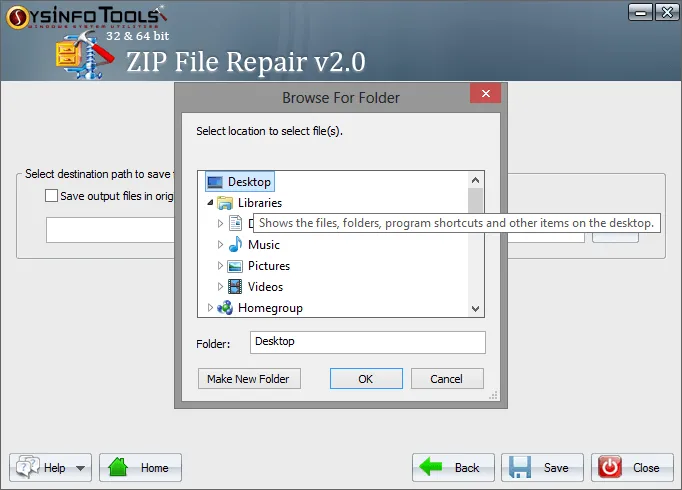
If your ZIP contains important documents and sensitive data, then use the SysInfo ZIP Repair Tool. This specialized software restores and recovers corrupted or compressed ZIP files in bulk. Fix ZIP file invalid headers and keep the data and structure intact while scanning the internal archive structure and reconstructing damaged directory entries. Additionally, the software is suited for all techie and non-techie users and can handle severely damaged or corrupted files with ease. Moreover, its Demo Version allows the evaluation to repair CRC and other issues and works flawlessly across all versions of Windows OS.
Quick Steps to Fix the Invalid Zip File
- Launch the ZIP Recovery Software and choose to add single or multiple ZIPs.
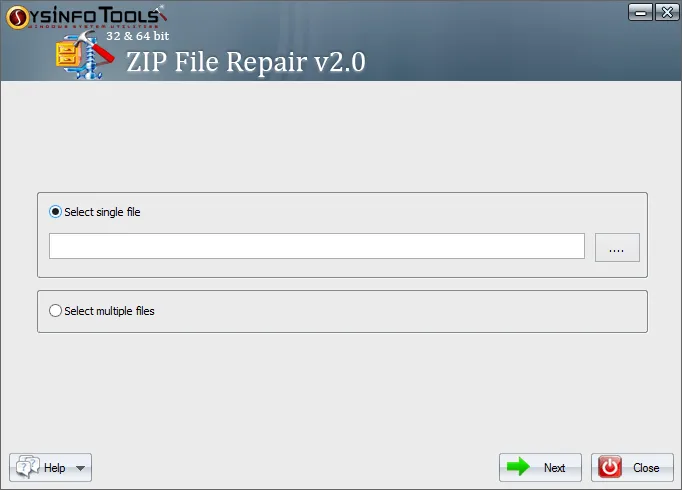
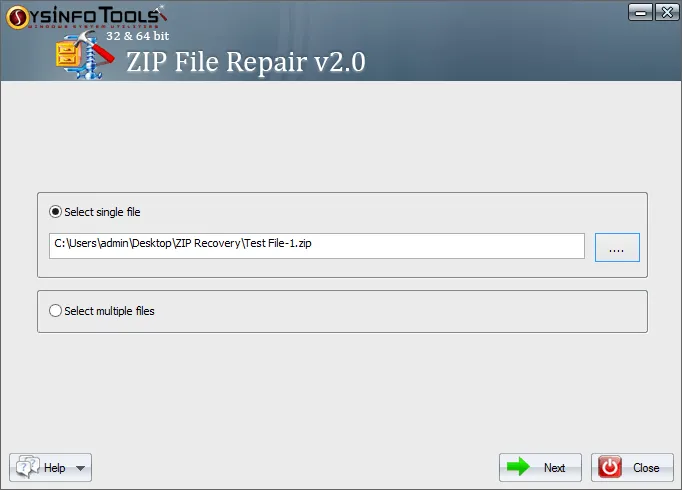
- Then, browse and add your corrupted ZIP file with (…) and click Next.
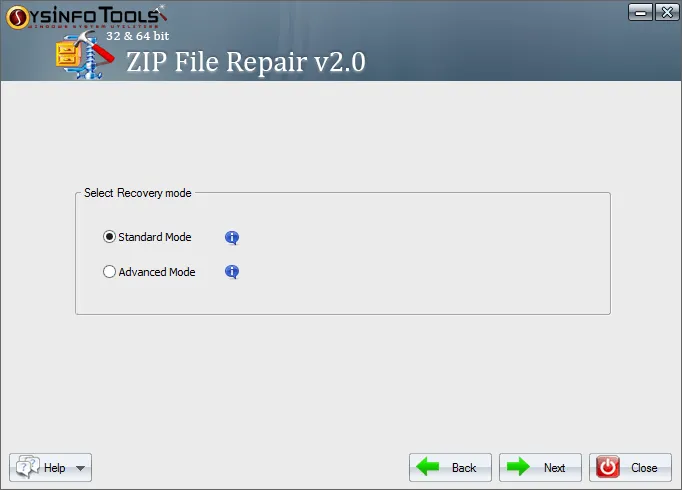
- Further, pick a recovery mode (Standard/Advanced) and again click Next.
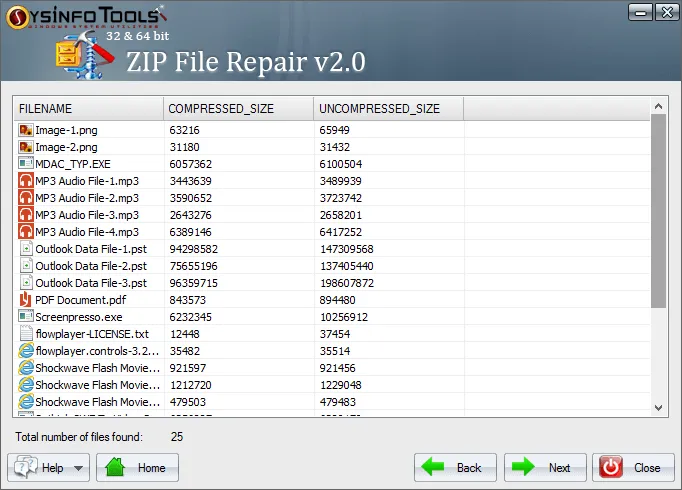
- Later, check your files, select them, and click Next to proceed.
- Finally, pick a destination to save them securely and click Save.
Pro Tips to Prevent ZIP Corruption
Here are some tips to prevent ZIP file corruption and potential data loss:
- Always download files from stable internet connections.
- Don’t force shut down your computer while downloading.
- Make sure you regularly update anti-virus software.
- Keep backups of your files in multiple locations.
- Use trustworthy compression applications.
It is typically more cost-effective to prevent corruption than to recover from it.
Conclusion
It is not always necessary to panic when you find a corrupted ZIP file. In many instances, the minor corruption can be repaired by using Windows tools or by re-downloading the ZIP file. If your ZIP file is moderately corrupted, you can use programs like WinRAR. However, if the contents of the ZIP file are critical or sensitive, use a professional SysInfo ZIP File Repair Tool to repair ZIP file while maintaining integrity and accuracy.
Frequently Asked Questions
Q1. Why do ZIP files become invalid or corrupted?
Ans. The ZIP format uses a defined directory structure to keep track of files in an archive. If a file transfer is interrupted or a hard disk has bad sectors, this structure can become damaged; as such, ZIP archives cannot be opened.
Q2. How to repair an invalid ZIP file on Windows?
Ans. You may use CHKDSK to check for problems on your hard drive, re-download your file, use Windows XP’s built-in repair option for archives, or download SysInfo ZIP Recovery Software to restore ZIP file.
Q3. Is it safe to repair ZIP files containing sensitive data?
Ans. As long as you use the trusted ZIP File Recovery Tool by SysInfo, you may upload and download ZIP files with full safety. However, avoid uploading sensitive ZIP files to untrusted websites to recover ZIP file.
Q4. Can I repair multiple ZIP files at once?
Ans. Microsoft does not have any built-in tools for batch repairing, but you can use the ultimate recovery software by SysInfo.
About The Author:
Simran Bhatia is a technical content writer engaged in writing clear, concise, and SEO-optimized content. With a background in computer science and a passion for writing, I thrive to deliver complex technical content in simple layman terms.
Related Post


