Import PST Files to Office 365 for Enterprises: Simple Guide

author Written By Deep Sikha
author Approved By Sonika Rawat
Updated on 17th April 2026
Reading Time 10 minutes

User Query: I need a reliable and efficient way to import large PST files into Office 365 without risking data loss. I am dealing with bulk data across multiple users. Is the manual method enough, or is there a faster and more reliable solution available?

Managing old email archives is a big challenge for today's companies. As they move to cloud services, getting old data to the new systems is key. A detailed Microsoft 365 migration guide helps keep data safe and easy to find for everyone. Big companies face a huge problem with lots of old emails. When you import PST files to Office 365, you need to be fast and correct to keep work going. A good plan makes sure the move is smooth and safe. Using the SysInfo PST to Office 365 Backup Tool, you can counter this issue.

Prerequisites:
  • An active Microsoft 365 plan is a must, as the import option won't appear without that.
  • The Mailbox Import Export role must be assigned, or the export option stays hidden.
  • Storage should be checked in advance, as PST files get large fast.
  • Internet speed matters more than you think, as big mailboxes take longer to upload.
  • The CSV mapping file must be error-free, as one wrong entry sends data to the wrong mailbox.
  • An encrypted location is necessary for sensitive data, as unprotected files are a security risk.

How to Import PST Files to Office 365?

When it comes to importing PST files into Microsoft 365, there is no single fixed path. Depending on the size of the migration and the resources at hand, different methods can come into play. Microsoft does have a built-in approach, but it is not always the most practical one for every situation. The sections below cover the most widely used manual method, so you can pick what actually works for your setup.

Steps to Migrate PST to Office 365 Using the Azure Method

Follow the procedure below to initiate the free migration:

  1. Step 01: Assign Required Permissions in Exchange Admin Center

    1. Start by logging in to the Exchange Admin Center with your admin credentials.
    2. From there, head to Permissions > Admin Roles.
    3. Open Organization Management from the list.
    4. Hit Add Role and pick Mailbox Import Export.
    5. Save the changes and give it a moment for permissions to kick in.
  2. Step 02: Create a PST Import Job in Microsoft Purview

    1. Once done, open the Microsoft Purview Compliance Portal.
    2. Now you have to look for Data Lifecycle Management, and after that, go to the Import Section.
    3. After that, hit New Import Job and give the job a name.
    4. Then select Upload Your Data (PST Files) as the import type and proceed.
  3. Step 03: Generate Azure Storage URL and Use AzCopy

    1. First, copy the SAS URL that appears on screen.
    2. Meanwhile, download and install Azure AzCopy on your machine.
    3. Open the tool and connect it to Microsoft Azure Storage using that SAS URL.
    4. Now, run the AzCopy command to push all PST files into storage.
  4. Step 04: Prepare the CSV Mapping File

    1. In this step, open Excel or Notepad and start building the CSV file.
    2. After that, add PST file names alongside their matching user mailboxes in Microsoft 365.
    3. You must make sure to go through the formatting carefully because one wrong entry causes mapping issues.
    4. Once done, save it as a CSV file before moving forward.
  5. Step 05: Upload Mapping File and Start Import
    1. Then, head back to the import job in the Microsoft Purview Compliance Portal.
    2. Further, upload the CSV file and run a quick validation to catch any errors.
    3. After that, hit Start Import once everything looks good.
    4. Finally, keep an eye on the progress until the migration wraps up completely.

Why Is Manual PST Import Difficult in Microsoft 365?

  • Takes a lot of time and involves multiple steps and configurations before anything actually moves.
  • You can upload PST to Office 365 manually, but it requires careful execution.
  • You need proper technical knowledge of tools like the Exchange Admin Center to get through it.
  • Mapping files and settings are easy to get wrong, and errors here can cause real problems.
  • Contacts and calendar data need to be handled separately, which adds extra effort to the whole process.
  • Not a practical option when dealing with enterprise-level or bulk PST migrations.
  • Selective data import is hard to control and offers very little flexibility.
  • Upload speed depends entirely on your internet connection to Microsoft Azure Storage.

How to Use SysInfo PST to Office 365 Migration Tool?

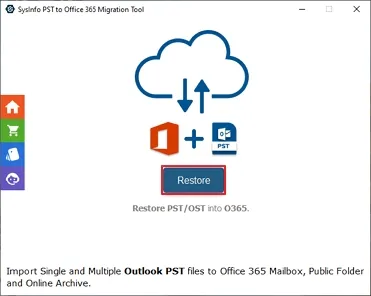
  • Step 01: At first, download and run the SysInfo PST to Office 365 Migration Tool, and click Restore. Press Continue to enter the tool.
Image
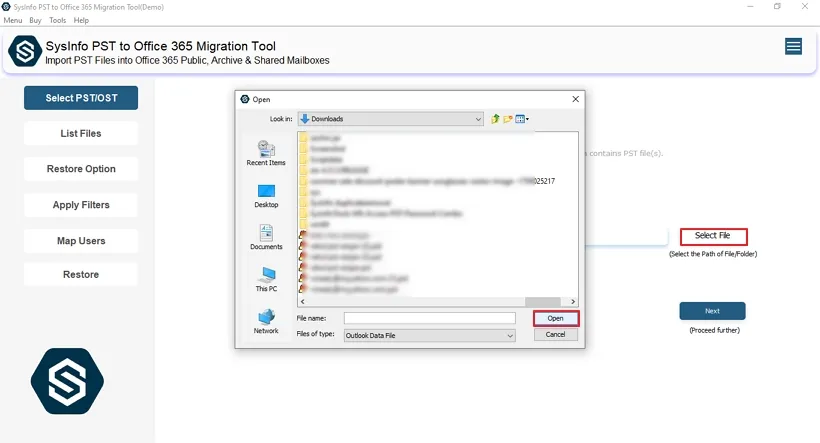
  • Step 02: After that, choose the file type and click the Select File option to add files. Browse the file or folder on your system and click Open to add.
Image
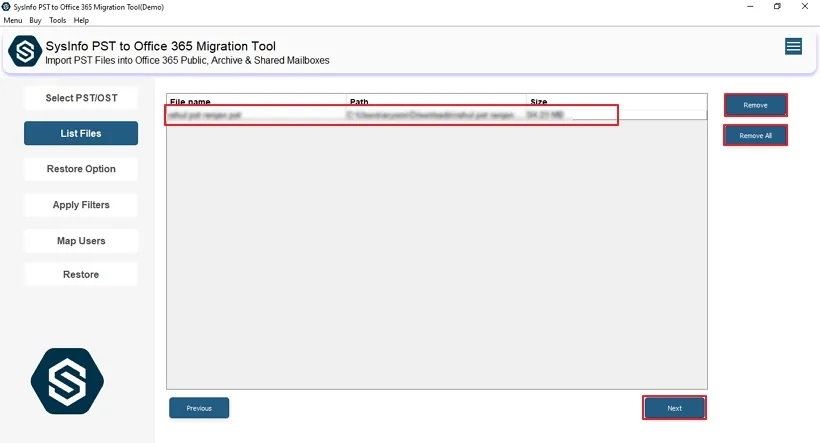
  • Step 03: After that, check the list of files in the panel and click Next to proceed.
Image
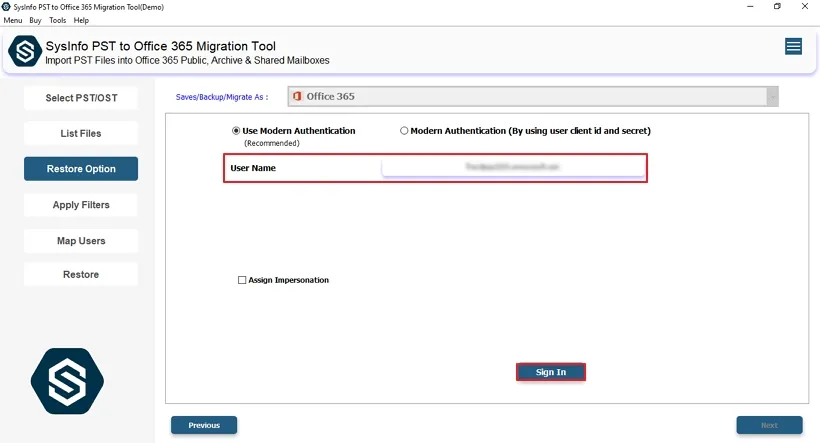
  • Step 04: Enter your Office 365 email address and press Sign In to authenticate your account.
Image
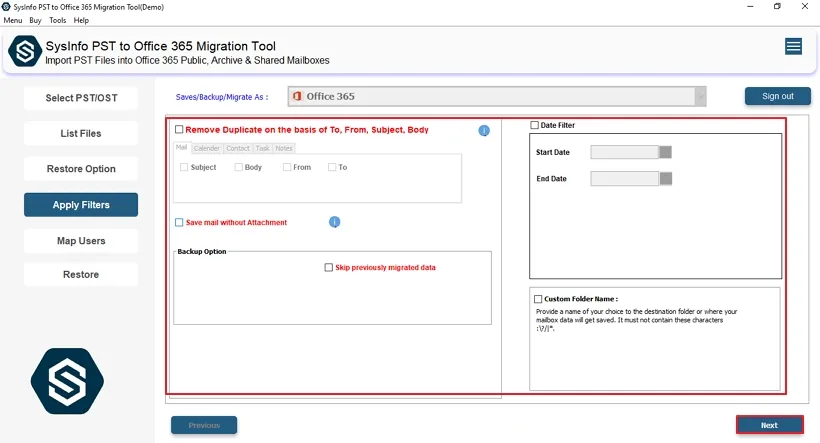
  • Step 05: From there, choose the additional filters from the tool's window that you want to apply.
Image
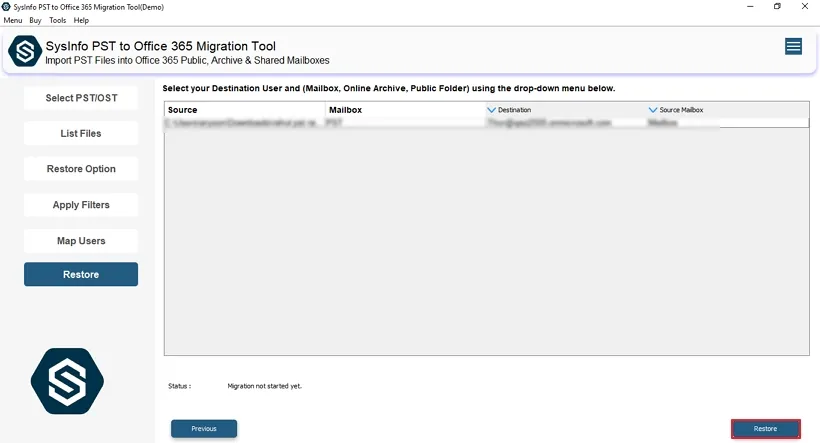
  • Step 06: Finally, select the mailbox where you want to store the PST files in Office 365 and press Restore to finish.
Image

How Does This Tool Help You Import PST Files to Office 365?

  • Bulk PST migration into Office 365 gets done without any manual steps involved.
  • Emails, contacts, calendars, and attachments all move over with full data integrity maintained.
  • Advanced filters let you migrate selective data based on date, folder, or item type.
  • Original folder hierarchy and metadata stay intact throughout the entire migration process.
  • Strong security and encryption keep the data transfer safe at every stage.
  • Faster and far less error-prone compared to doing it the manual way.

How a Company Migrated PST to Microsoft 365

A New York financial firm was sitting on over 12,000 scattered archive files spread across legacy systems with no easy way to manage them. Then, they brought in the SysInfo PST to Office 365 Import Tool to sort things out. Migration time dropped by 65%, data came through completely intact, compliance improved, and the whole team finally got centralized access without the usual IT headache.

Final Words

Moving legacy PST files to the cloud is a smart step. It brings better accessibility, tighter security, and smoother teamwork. The SysInfo tool makes it simple to import PST files to Office 365. No back-and-forth, no manual headaches. Get the planning right, and modernizing data management becomes far more straightforward

Frequently Asked Questions

Q1. How to Import PST to Office 365 with Attachments?

Ans. You can import PST files using the PST to Office 365 Import Tool along with attachments while maintaining complete email structure, metadata, and folder hierarchy. This ensures secure and organized migration into Microsoft 365 for enterprise environments.

Q2. Do I Need Technical Knowledge to Import PST Files to Office 365?

Ans. No, the SysInfo PST to Office 365 Migration Tool is designed for enterprise users of all skill levels. It removes dependency on complex manual processes and simplifies migration with a guided interface.

Q3. Can Businesses Securely Import PST Files to Office 365?

Ans. Yes, the SysInfo PST to Office 365 Migration Tool ensures enterprise-grade security with encrypted data transfer. It safely migrates large volumes of business data into Microsoft 365 while maintaining compliance standards.

Q4. How Can I Import PST Files to Office 365 for Multiple Users at Once?

Ans. This tool supports enterprise bulk migration, allowing administrators to map and migrate multiple PST files to different user mailboxes simultaneously, improving efficiency and saving significant time.

Q5. Can Organizations Upload PST to Office 365 with Minimal Downtime?

Ans. Yes, the software enables fast and automated migration designed for enterprise continuity. This helps organizations minimize downtime while ensuring smooth and uninterrupted business operations during migration.